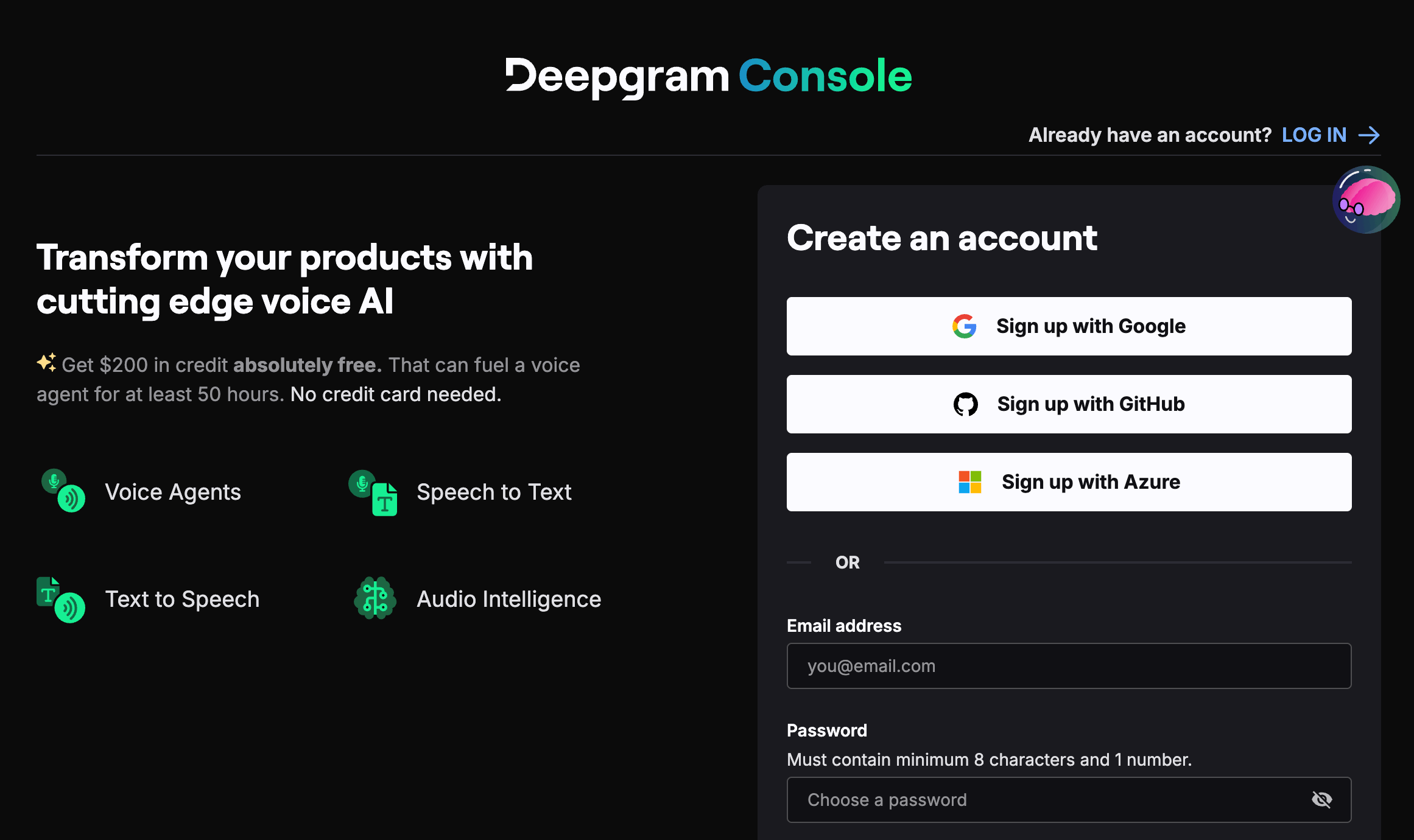
Go to console.deepgram.com/signup and create a free account.
You can sign up with Google, GitHub, Azure, or email.
After signing in, go to Settings → API Keys in the Deepgram console.
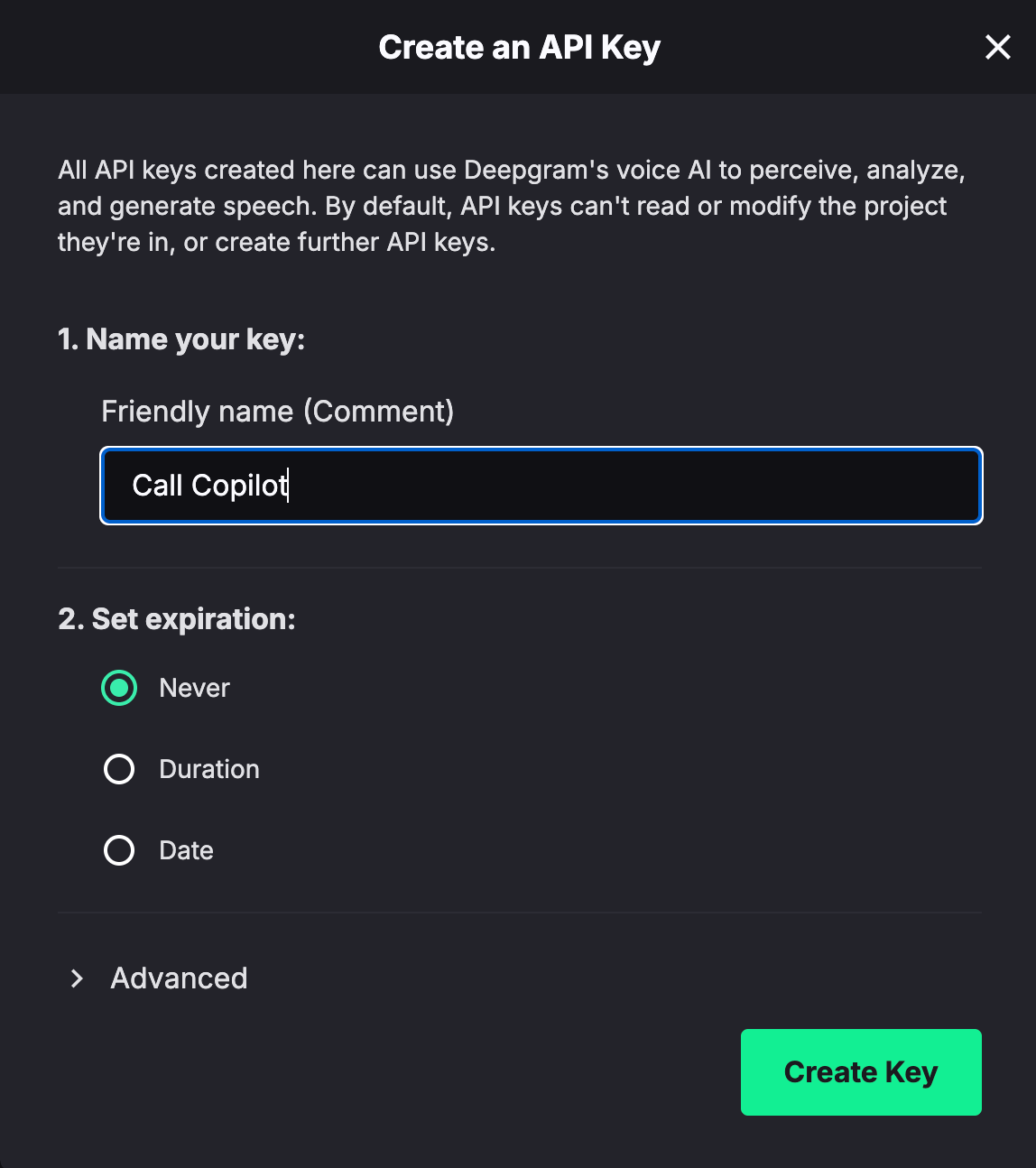
Click "Create a New API Key" and give it a name (e.g., "Call Copilot").
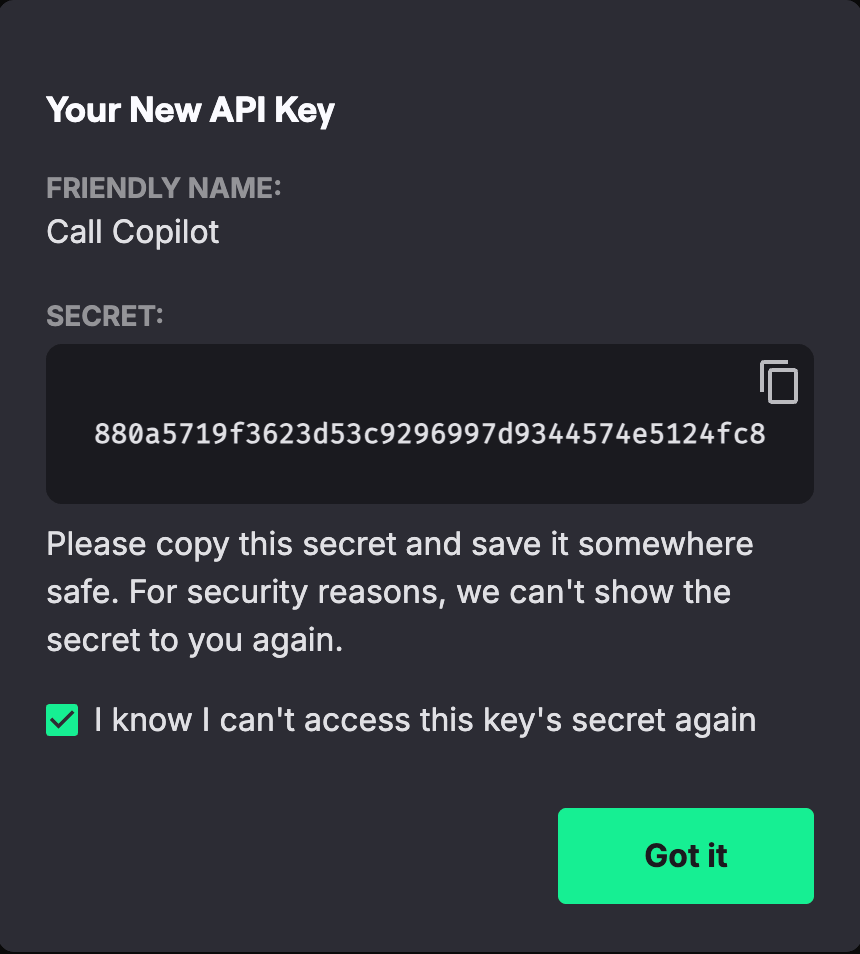
Make sure to copy the key immediately - you won't be able to see it again!
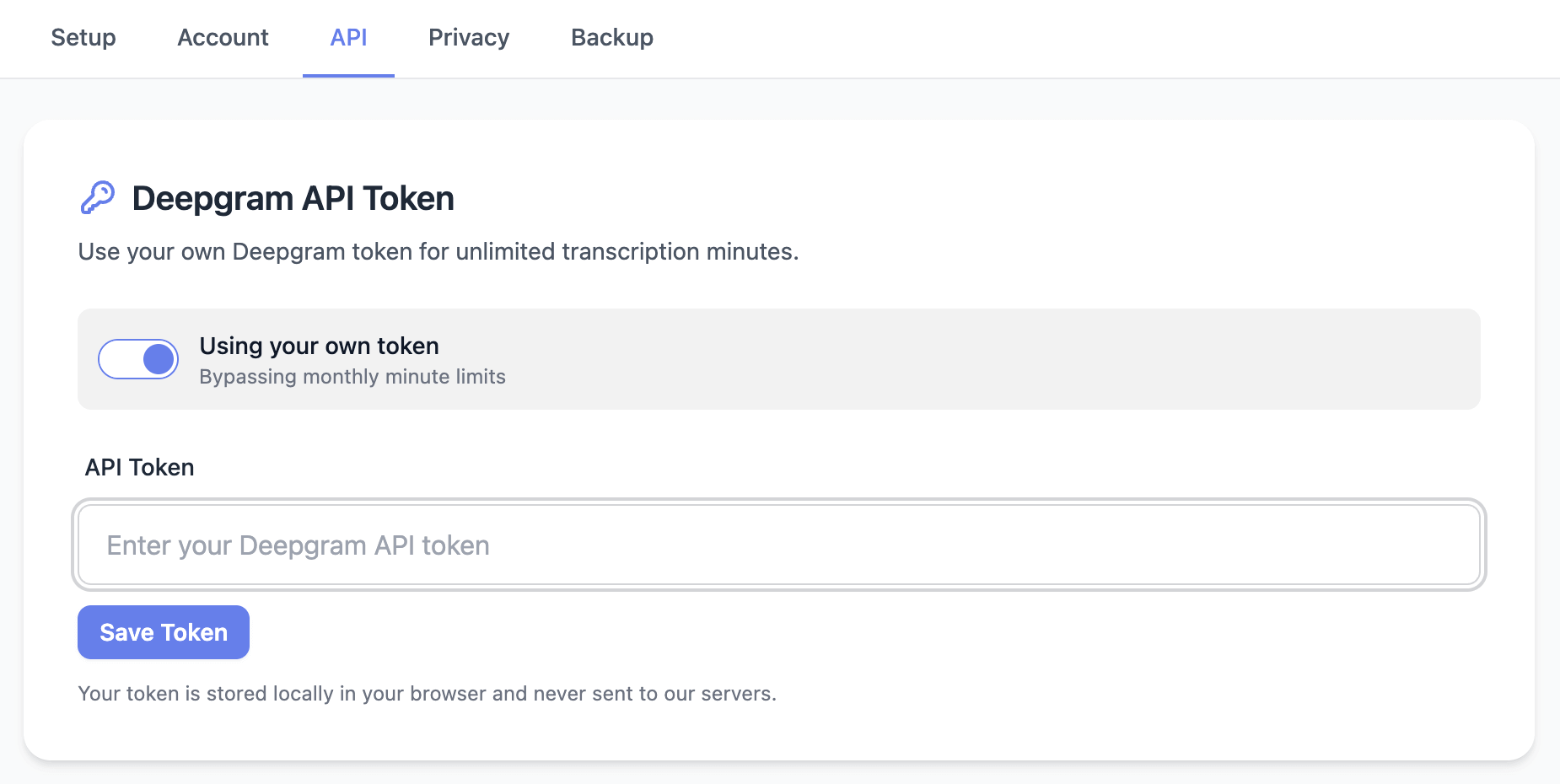
Open Call Copilot extension settings (click the extension icon → Settings).
Check "Use Own Deepgram Token" and paste your API key.
Click Save. Your key is stored locally and never sent to our servers.
Common Questions
How much does Deepgram cost after free credits?
Approximately $0.0072/minute for speech-to-text. Most users won't exhaust the $200 free credits for years of regular use.
Is my data safe?
Your API key is stored locally on your device only. Audio goes directly from your browser to Deepgram - we never see or store it.
Can I use the Monthly plan without a Deepgram key?
Yes! The Monthly plan includes 1000 minutes using our shared transcription service. You can optionally add your own key for unlimited usage.